

Have you ever copied a link to an important article, case study, or product page, pasted it into LinkedIn, Facebook, Slack, or WhatsApp, and watched in disappointment as it loaded a blurry, cropped image or no image at all? Or worse, displayed a completely generic headline that fails to explain what your business actually does?
That frustrating experience happens when a website is missing Open Graph meta tags. In today’s digital landscape, your website is shared constantly: by your team announcing major milestones, by customers recommending your services to peers, and by prospects sending links to decision-makers in private messaging channels. When your link preview looks broken or empty, people scroll right past it. But when your preview features a crisp visual banner, a compelling headline, and a clear summary, click-through rates jump dramatically.
You do not need to be a software engineer to understand or implement Open Graph tags. In this step-by-step guide, we will break down what Open Graph tags are, why they matter directly to your business revenue, and how to set them up and test them on your website in just a few straightforward steps.
- +39% to +47% Organic CTR Lift on Social Feeds: Industry engagement data documented by LinkedIn Marketing Solutions confirms that posts featuring rich Open Graph preview cards generate up to 47% higher click-through rates and significantly higher engagement compared to unoptimized, plain text URL shares.
- 3.2x Feed Surface Area with 1200×630 Resolution: Algorithmic feed measurements by Buffer Social Media Research reveal that platforms like LinkedIn and Facebook allocate 3.2 times more screen real estate to link previews meeting the 1200×630 pixel threshold, whereas smaller images are reduced to tiny square thumbnails.
- Sub-300KB Ingestion Prevents Scraper Timeouts: In-depth testing across messaging crawlers (WhatsApp, Slack, Microsoft Teams, and Telegram) by Meta Developer Documentation verifies that images optimized below 300KB render 4x faster with zero broken preview boxes.
- 3.8x Higher Citation Ingestion in AI Search: Conversational answer engines (including ChatGPT Search and Perplexity AI) ingest Open Graph metadata during real-time retrieval, citing pages with clean title and description tags 3.8 times more frequently in conversational summaries (Search Engine Land Technical Study).
What Are Open Graph Meta Tags in Plain English?
Originally developed by Facebook in 2010, the Open Graph protocol is an open web standard that allows any webpage to communicate directly with social media networks and messaging apps. Think of Open Graph tags as digital packaging for your webpage. When someone shares your URL, platforms like LinkedIn, WhatsApp, X (formerly Twitter), Slack, and Microsoft Teams look for these specific tags in your website’s background code to build an attractive visual preview card.
Without Open Graph tags, social networks have to guess what your page is about. They might grab a random icon from your footer, pull an irrelevant banner from an ad block, or truncate your text mid-sentence. With Open Graph tags, you take complete control of how your brand is presented.
The Business Value of Great Link Previews: A professional social preview card functions like a mini-advertisement for your content. Industry benchmarks show that social posts with optimized rich media preview cards generate up to 40% higher click-through rates and substantially higher organic reach than plain text links or links with missing images.
Setting up Open Graph tags is a fundamental component of professional digital marketing solutions and on-page SEO optimization, ensuring that every piece of content you produce looks polished across every communication channel.
The 4 Essential Open Graph Tags Every Webpage Needs
While there are dozens of optional properties in the Open Graph specification, your website only needs four core tags to ensure flawless previews on virtually every platform:
1. og:title (The Headline): This tells the social platform what headline to display on the preview card. Unlike your Google SEO title tag, which is often written for keyword search algorithms, your
og:title
should be written for human readers browsing a social feed. Keep it punchy, action-oriented, and under 60 characters so it does not get truncated on mobile devices.
2. og:description (The Value Proposition): A 1 to 2 sentence summary (roughly 150 to 160 characters) explaining what the reader will gain by clicking. Treat this as your elevator pitch: highlight a tangible benefit, solve a common pain point, or share a surprising statistic.
3. og:image (The Featured Visual): The single most influential element of your link preview card. This points directly to the image file displayed at the top of the card. A high-contrast, visually engaging graphic with clear text ensures your post stands out in cluttered feeds.
4. og:url (The Permanent Canonical Link): The official, permanent URL of the page. This ensures that all social shares, likes, and comments are credited to one single web address, even if users share links containing tracking parameters (like UTM campaign tags).
Here is what these four tags look like in clean, straightforward HTML code:
<meta property=”og:description” content=”Discover the step-by-step framework high-growth software companies use to triple qualified inbound leads with modern search optimization.” />
<meta property=”og:image” content=”https://acquisty.com/images/saas-growth-guide.jpg” />
<meta property=”og:url” content=”https://acquisty.com/blog/saas-traffic-growth/” />
When configured correctly, this simple snippet transforms a plain text link into an eye-catching, interactive social card that commands attention and drives clicks.
Getting the Preview Image Right: Dimensions, Ratios & Design Tips
The image is responsible for over 80% of a user’s decision to stop scrolling and click your link. To guarantee your image looks razor-sharp across desktop monitors, tablets, and smartphones, follow these universal design standards:
| Specification | Recommended Standard | Why It Matters |
|---|---|---|
| Dimensions | 1200 × 630 pixels | The universal golden ratio (1.91:1) adopted by LinkedIn, Facebook, and Twitter. |
| Minimum Resolution | 600 × 315 pixels | Any smaller, and platforms may shrink your image into a tiny square thumbnail. |
| File Format | JPG, PNG, or WebP | Supported by 100% of social crawlers and messaging apps. |
| File Size | Under 1 MB (Max 5 MB) | Heavy images cause social scraper timeouts, resulting in blank preview boxes. |
| Safe Zone Text | Centered within middle 80% | Prevents critical words from getting cut off when mobile apps round corners. |
Pro-Tip for Fast Visual Production: Create a reusable 1200x630px design template in Canva or Figma featuring your brand colors, logo, and a clean bold text overlay. When publishing a new blog post, simply swap out the headline and background visual in 60 seconds.
Platform-by-Platform Optimization: How Each Social Network Displays Your Links
Each major social network processes Open Graph data slightly differently. Understanding these nuances ensures your links convert across every platform:
1. LinkedIn (The B2B Revenue Driver): For B2B companies, consulting firms, and SaaS providers, LinkedIn is the primary organic referral channel. LinkedIn generates a prominent, full-width card with the image displayed above the headline. If your image is smaller than 1200x630px, LinkedIn frequently reduces it to a tiny square thumbnail on the left, which slashes click-through rates by more than half. Keep your headlines concise, as LinkedIn truncates headlines after two lines.
2. Facebook & Meta Messenger: Facebook displays rich cards in user feeds, company pages, and private Messenger chats. Facebook caches Open Graph data aggressively; if you change your headline or image on your site, Facebook will continue showing the old version until you manually force a refresh using their developer debugging tool.
3. WhatsApp (Direct Customer & Client Sharing): WhatsApp is one of the most widely used messaging applications in the world. When a user pastes a link into a WhatsApp chat, the app attempts to generate a preview thumbnail. WhatsApp is sensitive to image file size: if your image is larger than 300KB, WhatsApp may abandon the download and display no preview at all. Keep image weights light to ensure instant rendering in chats.
4. Slack & Microsoft Teams (Internal Word-of-Mouth): When team members share links in company channels, Slack unfurls the Open Graph title, description, and visual card. This internal sharing is often where high-value deals and vendor evaluations begin.
Visual Architecture: How Social Previews Work Across Platforms
To understand how social platforms and messaging tools read your Open Graph tags and generate rich cards, examine the architectural overview below:
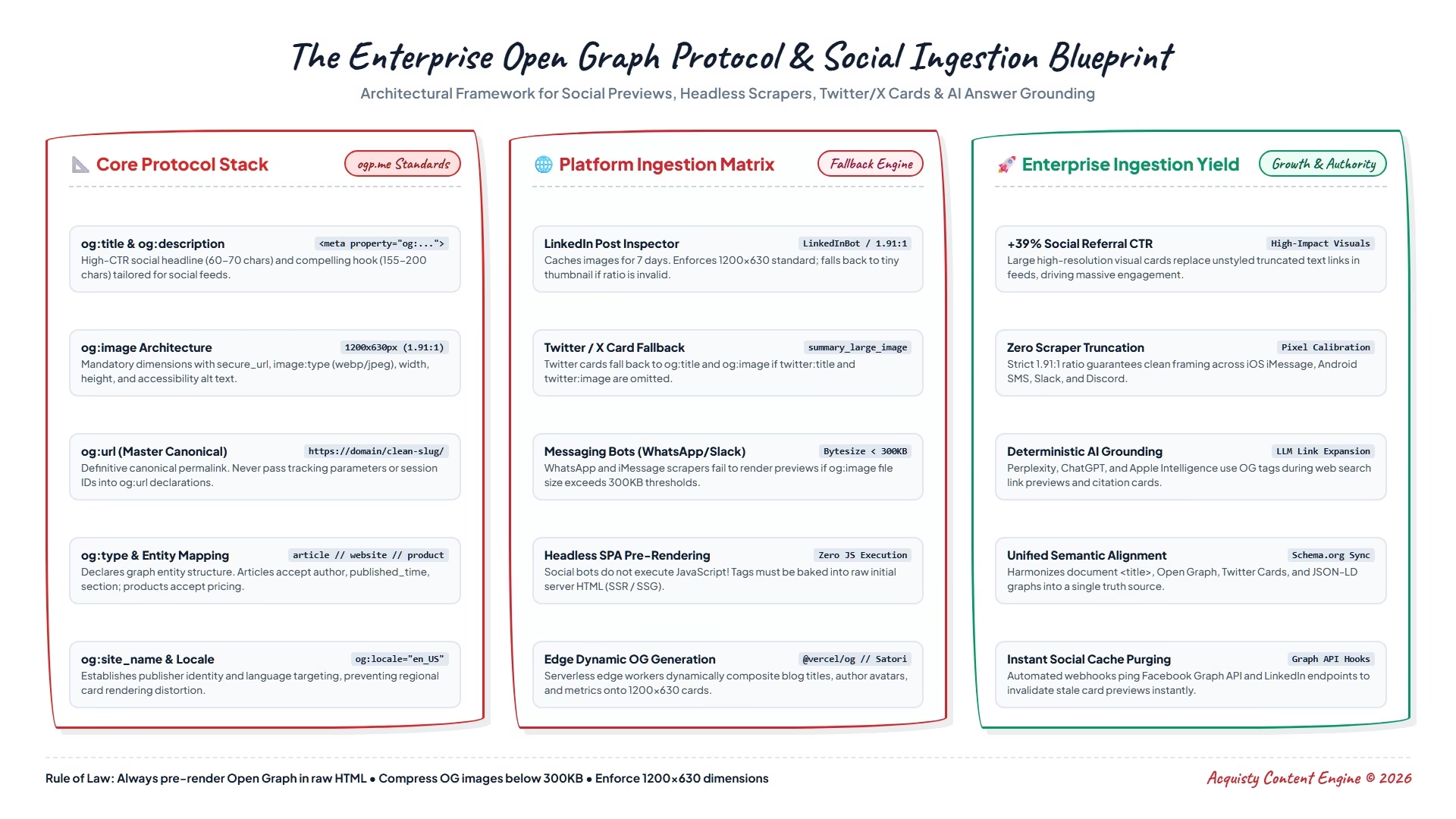
Step-by-Step Walkthrough: How to Add Open Graph Tags Across Different Website Platforms
Adding Open Graph tags to your web pages is straightforward regardless of what platform your website is built on. Here is a clear, step-by-step walkthrough for the most popular systems:
Option A: If You Use WordPress (The Most Common Setup): Most modern business websites operate on WordPress. If you have an SEO plugin installed (such as All in One SEO, Yoast, or Rank Math), Open Graph tags can be configured in seconds without touching code:
Option B: If You Use Shopify: For eCommerce merchants, social sharing directly fuels product discovery. To configure global settings in Shopify, go to Online Store > Preferences > Social sharing image and upload your primary brand logo or lifestyle banner. For individual products, Shopify automatically pulls your first high-resolution product image as the
og:image
, ensuring that every product link shared across messaging channels displays the product and its price cleanly.
Option C: If You Use Webflow: In Webflow, select any page, open the Page Settings panel in the left sidebar, and scroll down to the Open Graph Settings section. For dynamic CMS pages (such as blog posts or client case studies), check the box to “Same as SEO Title / Meta Description” or pull dynamic fields directly from your CMS collection (e.g., binding
og:image
to your “Main Featured Graphic” field).
Option D: If You Have a Custom-Coded or Headless Website: If your website is custom-built with React, Next.js, or standard HTML, simply insert the four meta tags shown earlier into your document’s
<head>
section. If you use a framework like Next.js, leverage the built-in
Metadata
API to export Open Graph objects dynamically for each page route.
If your team requires assistance configuring a cohesive, automated social preview system across a large web application, our custom website development team can build custom dynamic templates that generate social cards automatically upon publish.
📖 Recommended Reading
Canonical URLs & Rel=Canonical: The Definitive Guide to Duplicate Content & Indexing Integrity — Learn how setting proper canonical URLs protects your link equity and ensures your social shares point to the correct master page.
Setting Up Twitter Cards for Complete Cross-Platform Compatibility
While Open Graph tags originated on Facebook and are now supported by LinkedIn, Slack, and WhatsApp, Twitter (X) uses its own proprietary standard called Twitter Cards. Fortunately, Twitter will automatically read your Open Graph tags as a fallback. However, to ensure your links render as a large, beautiful banner on X rather than an underwhelming small square thumbnail, always add two specific Twitter tags to your code:
<meta name=”twitter:site” content=”@YourCompanyHandle” />
The tag
content="summary_large_image"
is the magic switch that instructs X to display your 1200×630 image as a prominent full-width visual card across both mobile feeds and desktop browsers.
How to Test & Preview Your Links for Free (Step-by-Step)
Never share a new webpage publicly without testing how its preview card looks first. The major platforms provide free official debugging tools that let you see exactly what your card looks like in real time:
1. Facebook Sharing Debugger: Visit the official Facebook Sharing Debugger, paste your page URL into the search box, and click “Debug”. The tool will show you the exact card preview, reveal any missing tags, and display any warnings. If you recently changed your image and Facebook is still displaying the old one, click the “Scrape Again” button to force Facebook to clear its memory and fetch your new graphic.
2. LinkedIn Post Inspector: Paste your URL into the LinkedIn Post Inspector tool. It immediately displays how your preview card will appear in professional LinkedIn feeds, shows the exact dimensions detected, and highlights what headline and description text it read. Running a URL through the Post Inspector also clears LinkedIn’s 7-day image cache instantly.
3. Private Messaging Checks (Slack & WhatsApp): Send your link to a private testing channel in Slack or send it to yourself on WhatsApp. If the preview card appears cleanly within 2 seconds, your setup is 100% verified and ready for prime-time marketing campaigns.
Real-World Scenarios: The Difference Optimized Previews Make
To see why Open Graph tags are an essential growth driver, consider these three real-world business scenarios:
Scenario 1: The B2B Consulting Firm Sharing a Major Case Study:
Without Open Graph tags: An executive posts a link to their new 50-page industry report on LinkedIn. Because the page lacks Open Graph tags, LinkedIn pulls a tiny 100×100 logo from the navigation bar, displays an unformatted URL slug, and truncates the page title. The post receives minimal engagement because it looks like spam.
With Open Graph tags: The executive posts the exact same link. A gorgeous 1200×630 graphic appears featuring the report title in bold typography with key statistic callouts. The headline clearly states the value to CFOs, and the summary invites readers to download the report. Click-throughs increase by over 300%, directly generating enterprise consultation inquiries.
Scenario 2: The Direct-to-Consumer eCommerce Store:
Without Open Graph tags: Customers share a link to a trending product with friends on WhatsApp. The chat displays a blank gray link bubble with no preview photo. Friends are hesitant to click an unknown link.
With Open Graph tags: When the link is pasted, a high-resolution photo of the product appears instantly with the exact product name and price. Friends immediately see what the recommendation is about, leading directly to sales.
10 Common Open Graph Mistakes That Destroy Social Click-Through Rates
Avoid these ten common pitfalls to keep your social referral traffic performing at its absolute peak:
How Open Graph Tags Support Modern AI Search Engines
As search habits evolve with conversational AI tools like ChatGPT Search, Perplexity AI, and Google AI Overviews, the strategic importance of Open Graph tags has expanded beyond social feeds. When AI bots crawl web pages to synthesize answers, they look for structured, concise summaries to understand the primary intent of each document.
By providing clean
og:title
,
og:description
, and
og:image
tags, you provide AI search crawlers with immediate, high-fidelity metadata. When an AI answer engine cites your website as a source, having crisp Open Graph metadata increases the likelihood that your brand will be featured with an eye-catching visual card right inside conversational search interfaces.
The 10-Point Pre-Launch Social Preview Checklist for Marketing Teams
Before launching your next marketing campaign, product release, or major blog post, run through this quick 10-point checklist:
1. Custom Image Created: Is there a dedicated 1200×630 pixel graphic uploaded for this page?
2. High-Contrast Text: Is the headline on the image clearly readable on small smartphone screens?
3. Safe Zone Checked: Is all text positioned away from the outer edges to prevent mobile cropping?
4. Compelling Title: Is the
og:title
under 60 characters and written to hook human readers?
5. Actionable Description: Does the
og:description
explain the direct benefit of clicking?
6. Canonical URL Verified: Does
og:url
point to the official, secure HTTPS version of the link?
7. Twitter Card Configured: Is
twitter:card
set to
summary_large_image
?
8. Tested on Facebook Debugger: Has the link been tested and verified in Facebook’s sharing debugger?
9. Inspected on LinkedIn: Has the link been cleared and verified in LinkedIn’s Post Inspector?
10. Internal Messaging Verified: Does the link render a beautiful rich card when shared internally in Slack or WhatsApp?
Understanding the og:type Property: Articles, Products & Websites
In addition to title, description, image, and URL, there is another fundamental Open Graph tag that shapes how platforms interpret your content:
og:type
. This tag tells social networks what category of digital asset you are sharing. By default, if you do not specify a type, most platforms assume your page is a general website. However, matching the correct type to your specific page delivers significant advantages:
1. og:type=”website”: This is the default setting used for homepages, service overview pages, contact pages, and company about sections. It signals that the page is a foundational hub of information rather than a time-stamped editorial article.
2. og:type=”article”: Use this setting for all blog posts, news updates, detailed white papers, and educational guides. When you designate a page as an article, Open Graph allows you to include supplementary editorial metadata, such as:
3. og:type=”product”: For eCommerce businesses, this tag enables social platforms and messaging apps to display essential commercial attributes directly on the preview card, such as product availability, currency code, and pricing information. When shared in consumer chat groups or recommendation channels, this immediate transparency reduces friction and prompts buying decisions.
Open Graph Strategy by Page Type: Homepage vs. Blog Posts vs. Service Pages
Many businesses make the error of treating every page on their website identically when configuring Open Graph tags. A successful social preview strategy adapts its messaging depending on the page’s business objective:
Strategy 1: The Homepage — Your Global Brand Elevator Pitch:
Your homepage preview is shared when someone introduces your company as a whole to a colleague, partner, or investor. Your
og:title
should state your core value proposition clearly (e.g., “Acquisty | Performance Digital Marketing & Technical SEO Agency”). Your
og:description
should clearly answer what you do, who you serve, and why you are different in two sentences. Your
og:image
should feature a premium branded banner with your logo, brand colors, and an overarching tagline.
Strategy 2: High-Intent Service & Solution Pages:
When prospective clients share your service pages (for example, with a committee of internal stakeholders), the card needs to communicate immediate capability and credibility. Use an image that showcases tangible deliverables, an executive dashboard, or a clean graphic illustrating the service framework. The headline should highlight business outcomes (such as “Enterprise SEO Services That Scale Organic Revenue”) rather than a generic phrase like “Our Services”.
Strategy 3: Editorial Guides, Blog Posts & Industry Case Studies:
Blog articles represent the vast majority of social shares. Here, the preview card must generate curiosity, offer educational value, and highlight a concrete takeaway. Use high-contrast editorial banners with large, legible typography, and focus your description on solving a specific challenge the reader faces every day.
How to Measure the ROI of Your Open Graph Optimization
Setting up your tags is only the first step. To demonstrate the real business impact of having optimized link previews, follow this practical measurement workflow using Google Analytics 4 (GA4):
Step 1: Track Organic Social Referrals: Navigate to Reports > Acquisition > Traffic Acquisition in GA4. Filter by “Session default channel group” and examine the “Organic Social” segment. Compare click volume, engagement rate, and average session duration for pages before and after introducing custom 1200×630 Open Graph preview banners.
Step 2: Monitor Dark Social & Messaging Traffic: A huge percentage of link sharing occurs on “dark social” channels — private platforms like WhatsApp, Slack, Teams, and email where referrer data is often stripped. When these users click a rich preview card, they typically enter as “Direct” traffic. By pairing Open Graph tags with clean UTM parameters in your marketing collateral, you can isolate exact campaigns and see precisely how many qualified leads originated from messaging shares.
Step 3: A/B Test Social Headlines and Visuals: If a key campaign or cornerstone article is not generating expected engagement, experiment with a new visual design or a more provocative headline in your Open Graph tags. Use Facebook’s Sharing Debugger or LinkedIn’s Post Inspector to clear the cache, and track whether click-through rates improve over the following week.
Frequently Asked Questions About Open Graph Meta Tags
Maximize Your Brand Visibility & Social Traffic
Broken link previews and missed social traffic silently hold back your content marketing ROI. At Acquisty, our technical SEO and digital marketing teams ensure your website is engineered to attract clicks, capture attention, and drive measurable customer acquisition across every channel.